
Windows 7 – Canon LiDE 35 installation fix (also works on Windows 10)
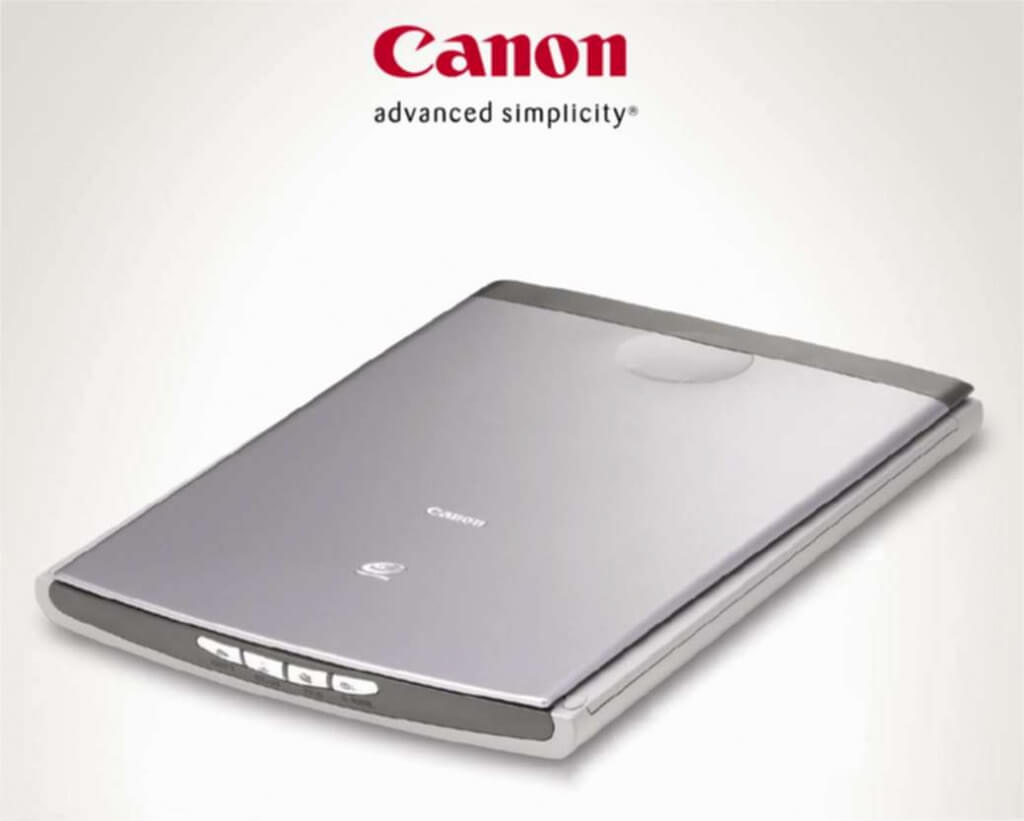
So I was fairly happy with Windows 7 except for one thing, my canon Canon LiDE 35 scanner would just not install, I tried Vista drivers, 64 and 32 bit versions, XP drivers, drivers that weren’t even for my scanner, I also tried all the tricks, compatibility mode, admin mode, manual installation, basically anything I could think of, but in the end I gave up and resigned myself the fact that if I wanted anything scanned I would have to boot into XP.
I recently checked the Windows 7 forums again and noticed a post suggesting something I may have missed, and to my amazement it worked!
Here are the steps for anyone with a similar problem –
Open device manager locate the scanner device (it probably has a yellow exclamation mark next to it).
Select properties then update driver.
Choose Browse my computer for driver software then Let me pick from a list of device drivers on my computer.
Look for Canon Inc. in the manufacturer list, then select CanoScan LiDE 60.
Click next and ignore any warnings about the driver not matching your hardware.
That’s it, all done, your scanner should now work.
Edit: You may need to run ScanGear CS before the drivers will show up, get it from Canon’s Europe site – ScanGear CS Vista x64 or my local mirror 32 bit / 64 bit.
For 32 bit versions of Windows 7 try this tip from CherrySu – “I changed the version of the CanonScan Toolbox from 4.9 to 4.5 and that seemed to solve the problem I was having with the TWAIN source!”
Another tip from the comments – The Canon drivers only support TWAIN scanning, not the new WIA mode in Windows 7. To get round this you can use Picassa’s import feature (found under the file menu). You can then save them to be opened in Photoshop etc. Download Picassa for free here.
If you found this article helpful then please consider making a small donation via PayPal or gift from Amazon.








Add a Comment Below